Environment Settings
In the settings of the home screen, you can directly change or check the security document behavior, server information, password, user environment inspection, updates, etc.
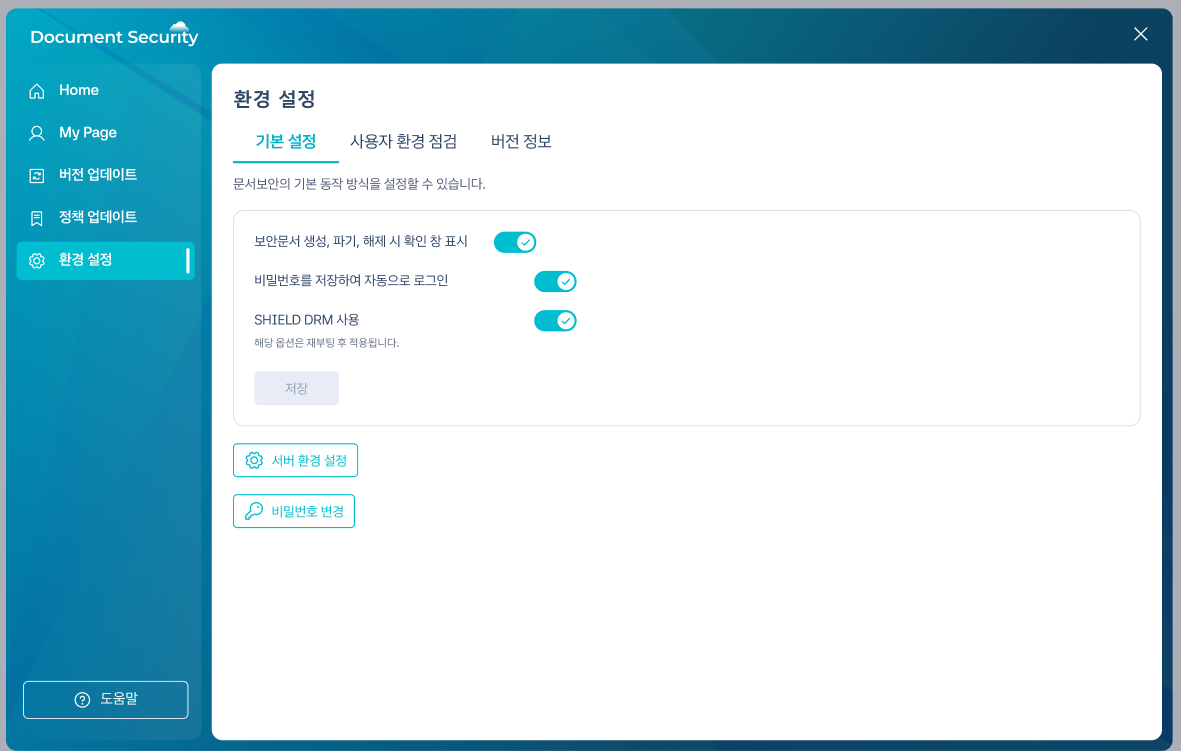
1. Open Environment Settings
- Left-click the tray icon to open the home screen.
- In the left navigation or main cardEnvironment SettingsPress.
- The settings screen opens andBasic Settings / User Environment Check / Version InformationThe tab will be displayed.
| Environment Settings |
|---|
 |
2. Setting Up Security Document Operation Method
Toggle the basic operation modes such as whether to display the confirmation window and whether to use SHIELD DRM with a switch.
- Basic SettingsTurn the toggle switch for the item to be changed in the tab on or off.
- Changes are applied immediately, and a notification saying "Settings have been changed." will be displayed.
| item | when turned on | when it was turned off |
|---|---|---|
| Confirmation Window Settings | Display confirmation window when creating, destroying, or releasing security documents | Process immediately without a confirmation dialog |
| Automatic Login | Stores the password information of the last logged-in account to automatically log in during the next login. | The document security login window is activated, and you need to proceed with the document security login. |
| DRM Settings | Using SHIELD DRM Features | DISABLE SHIELD DRM FUNCTION |
If the configuration change fails, a message will be displayed stating "Failed to change the configuration." Please try again later, or contact your system administrator if the issue persists.
3. Change Server Information
You can directly configure the address and response time of the document security server. Usually, it is set automatically according to company policy, and changes are made only when instructed by the system administrator.
| Server Information Change | For multiple servers with 2 or more |
|---|---|
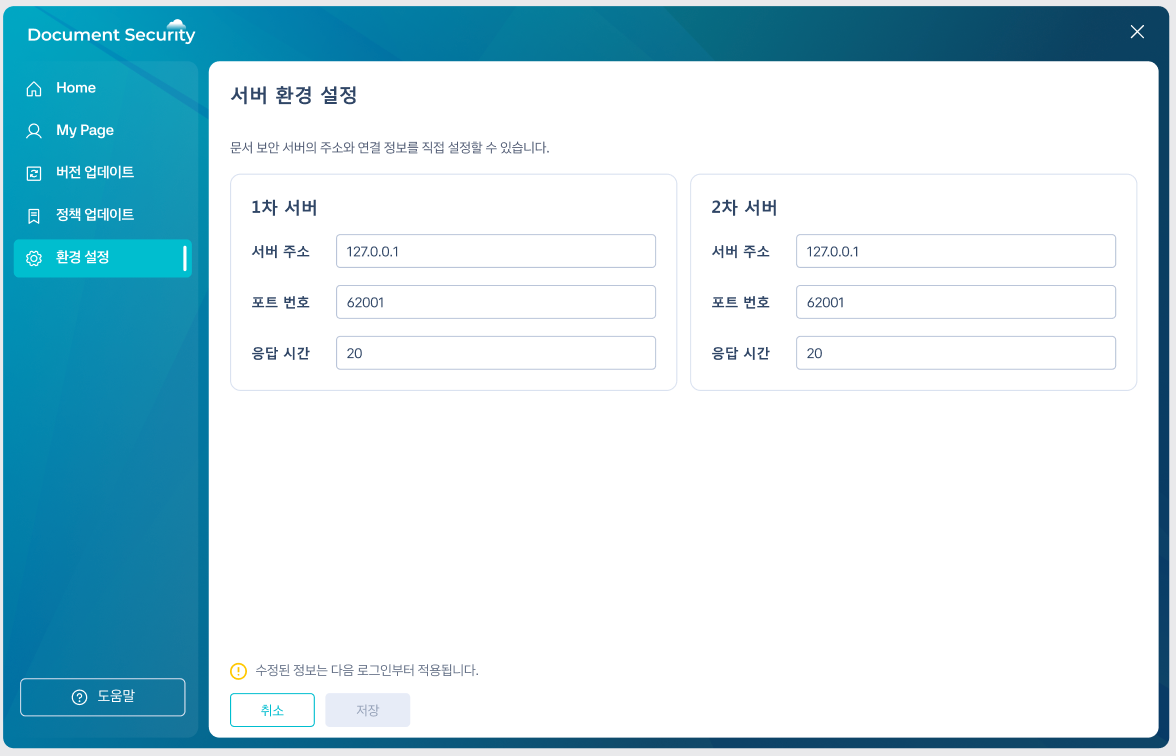 | 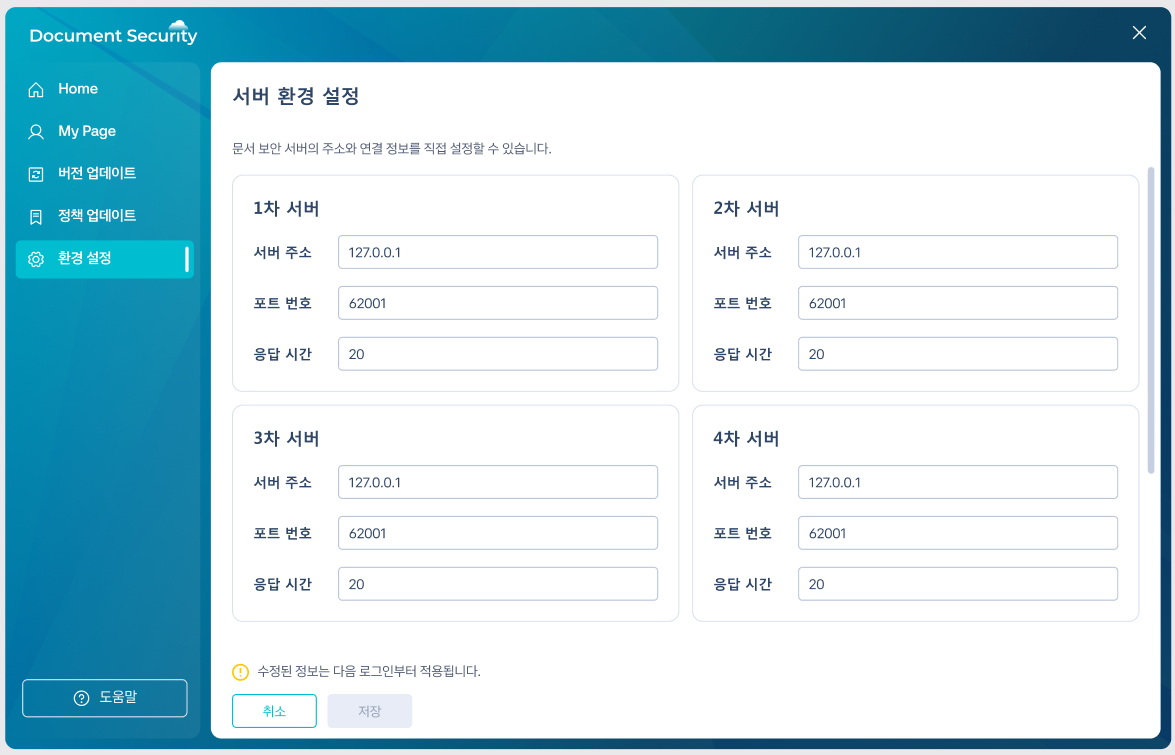 |
- environment settings ofBasic Settingsin the tabServer InformationOpens the area.
- 1st ServerWowSecondary ServerEnter the address.
- Response TimeChecking information.
- Applies.
The updated information will be applied from the next login.
- When changing server information while logged in, it means that the changes are not immediately reflected and will be applied upon logging out and then logging back in.
4. Change Password
Safely change the password of the currently logged-in account.
| Change Password | When changing the normal |
|---|---|
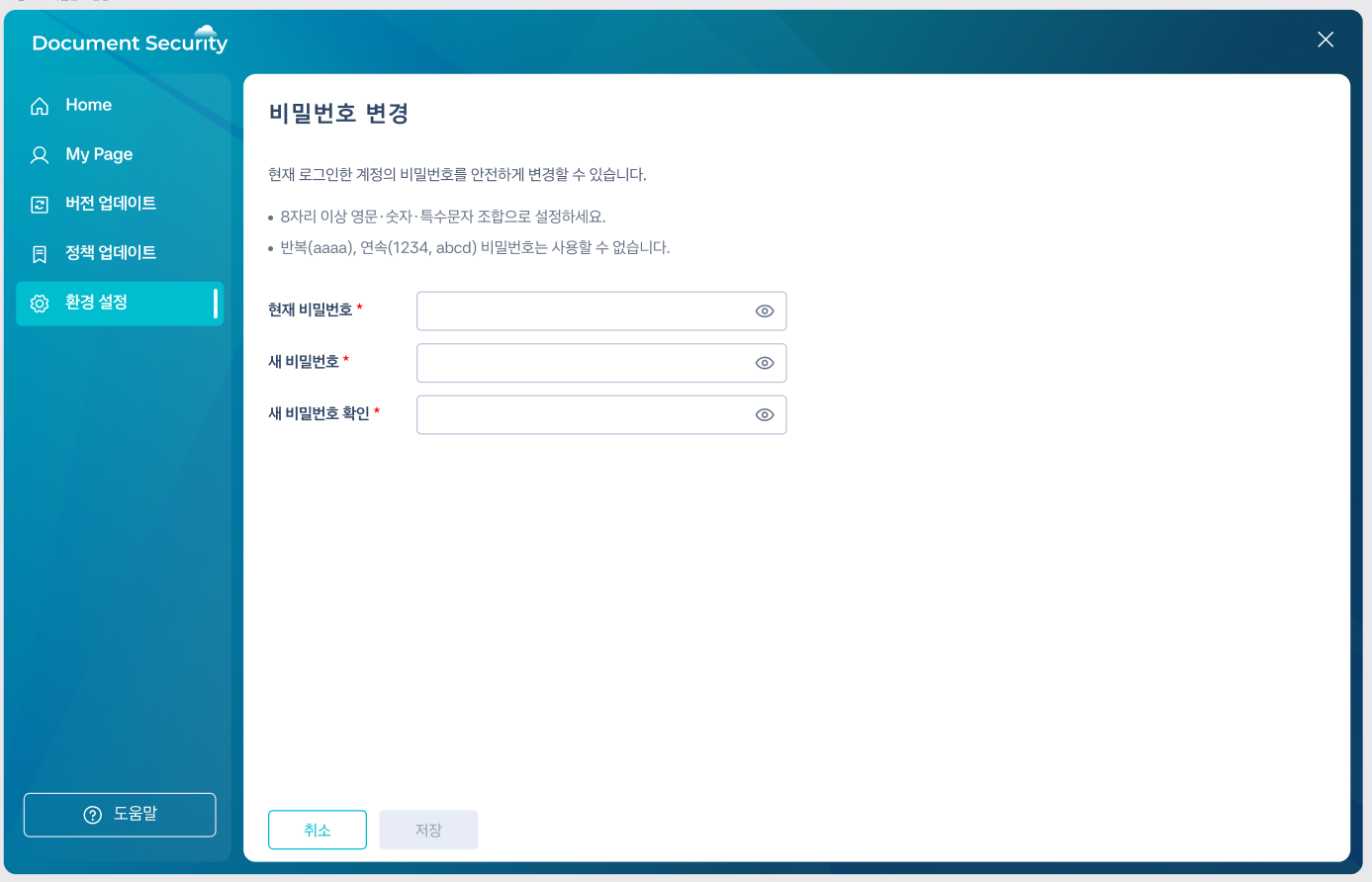 | 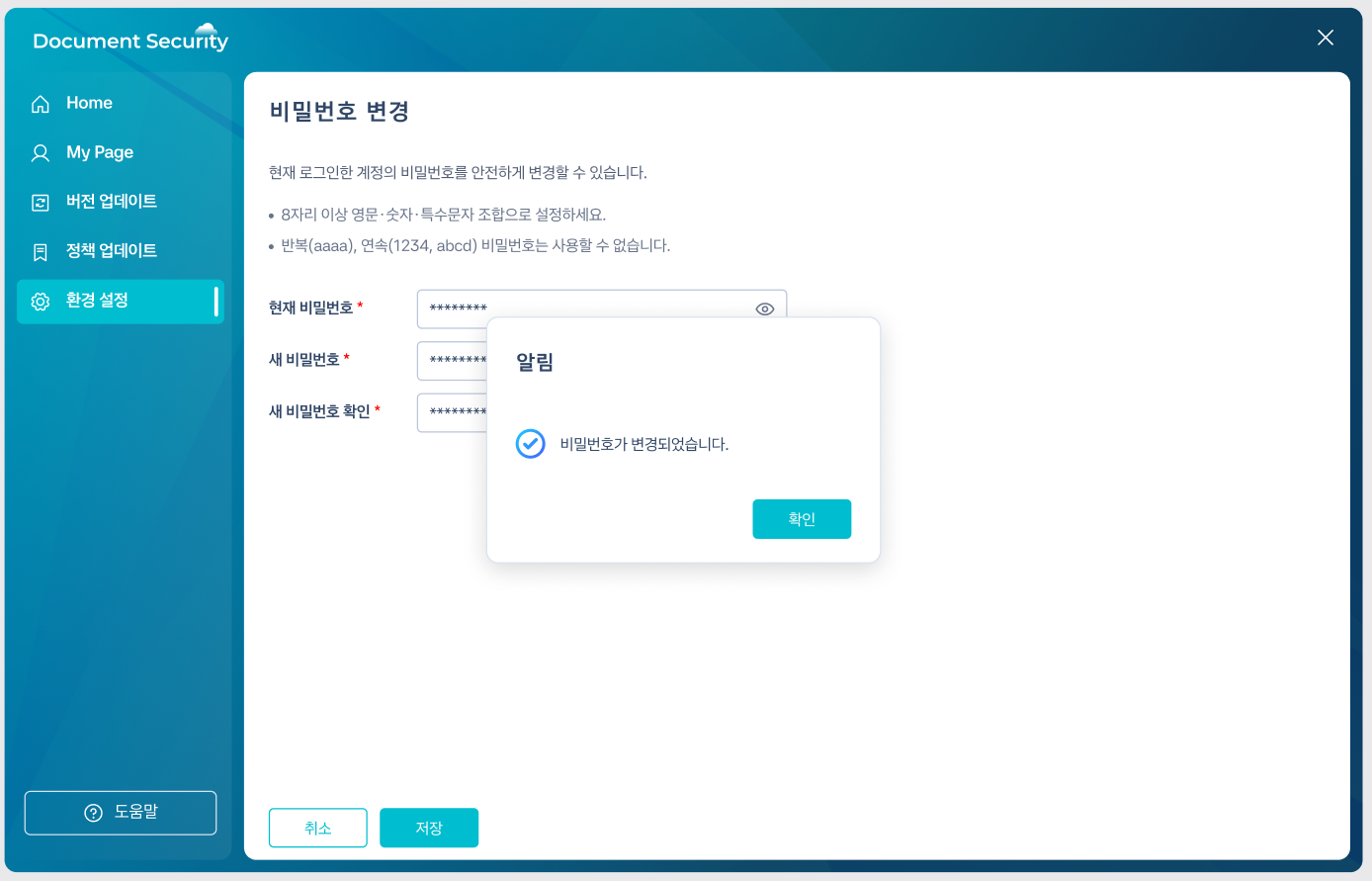 |
- environment settings ofBasic Settingsin the tabChange PasswordOpens the area.
- Current PasswordEnter.
- New PasswordWowNew Password ConfirmationEnter the same value.
- Click the apply button.
Password rules (length and character types) vary depending on the company environment. If a guidance message appears while entering, follow those criteria.
5. Execute User Environment Check
Check the user's PC environment (operating system, Office version, third-party security programs, etc.).
| User Environment Check | When the button is clicked |
|---|---|
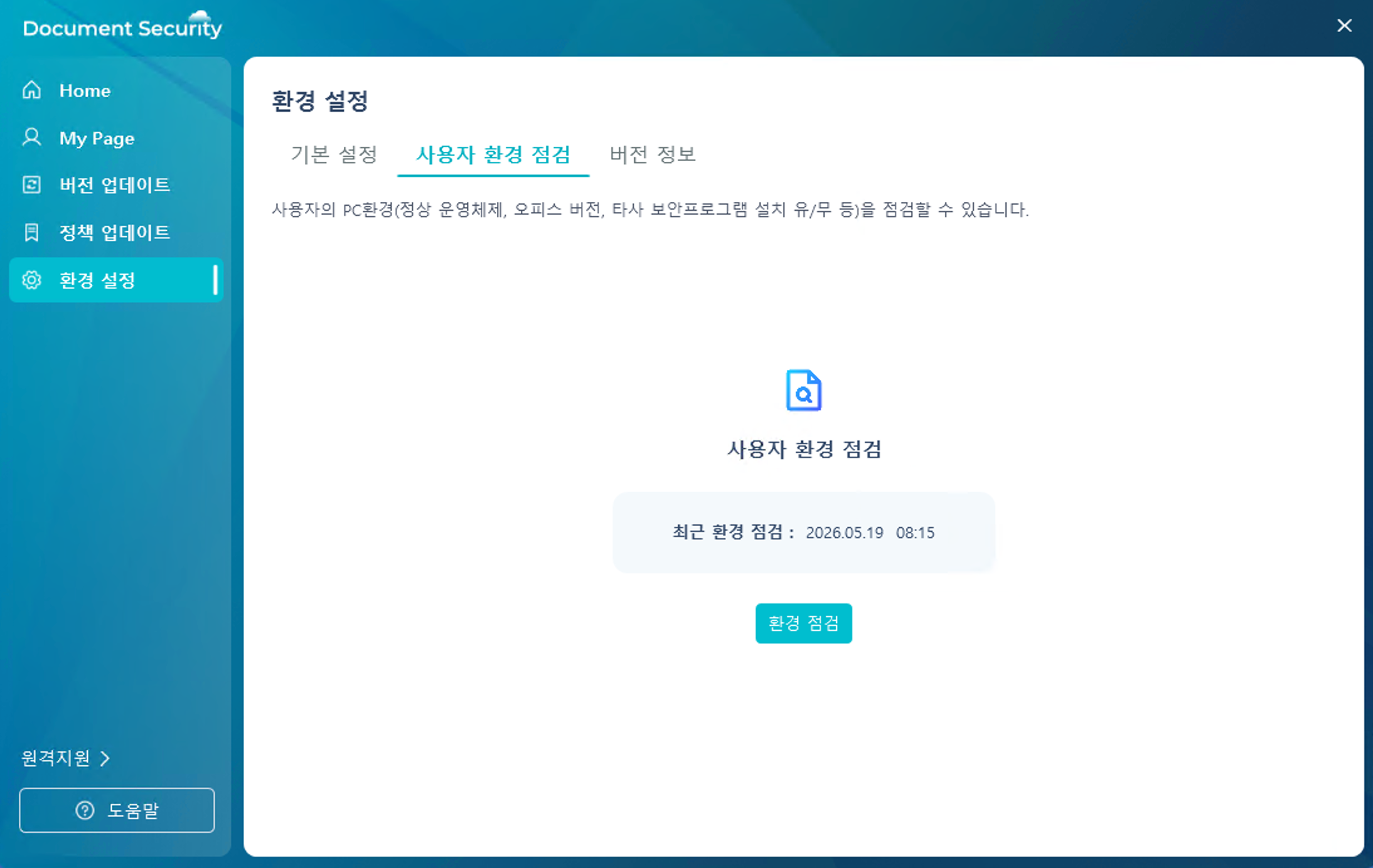 |  |
- in the environment settingsUser Environment CheckOpens the tab.
- Recent Environmental InspectionChecking the time.
- Environment CheckPress the button.
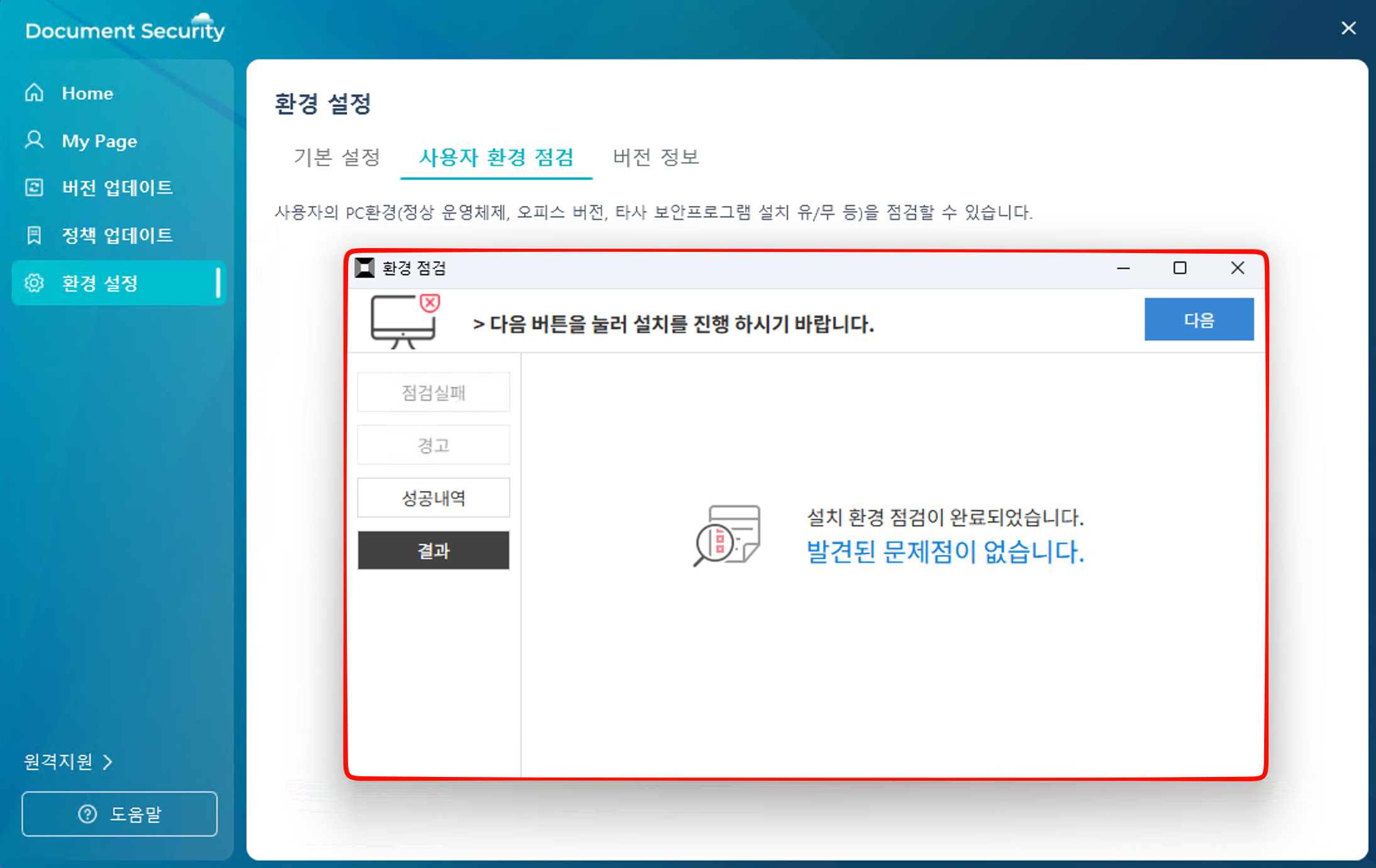
- When the inspection is complete, the results screen will be displayed.
Inspections are usually completed in a short period of time.
6. View Environment Inspection Results
You can check the pass/fail status for each item and the meaning of the failed items on the inspection results screen.
General Inspection Items (Example)
- Normal operating system version status
- Office Version Compatibility
- Installation status of third-party security programs
- Vaccine Operation Status
- Whether essential security patches are applied
1. Check Version Information
Check the currently installed version and product information of Document Security, and navigate to the manual and guide site.
| Environment Settings - Version Information |
|---|
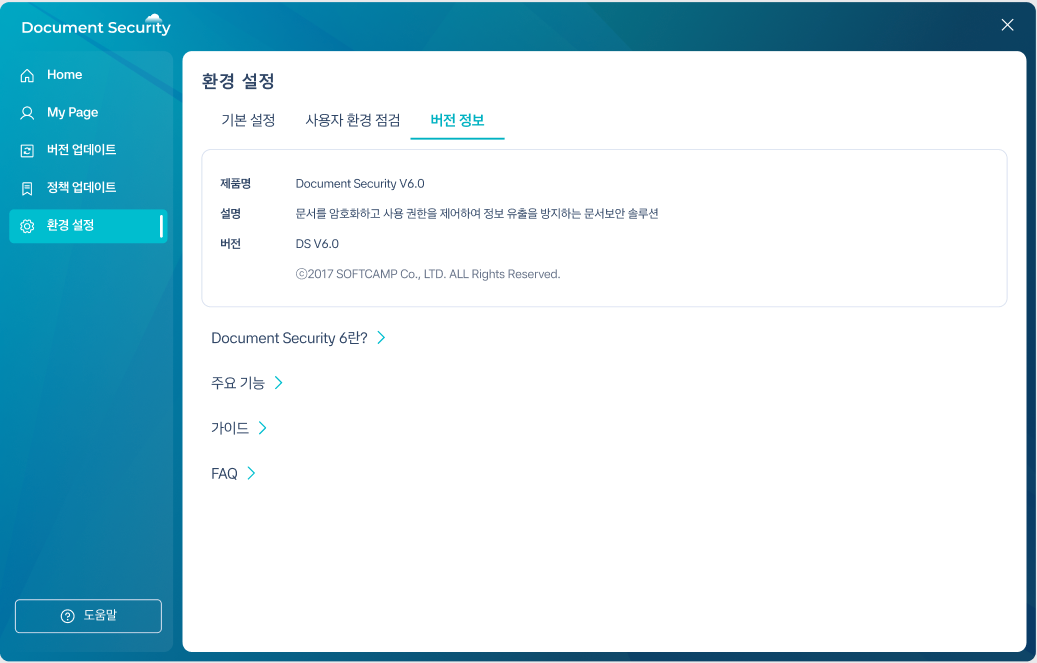 |
Display Information:
- Product Name (Document Security V6.0)
- Description (A security solution that encrypts documents and controls access permissions)
- Version and Copyright Notice
Text Button:
- Clicking each text will open the related official page in the browser.